← Glucose Thread
Libre 3 setup

Connect Libre 3 in five simple steps.

Start only after your Libre sensor is already paired and giving readings in Abbott’s official app. Glucose Thread never replaces that app or its alarms.

Already using the older FreeStyle Libre 3 – US app?If it is working with your active sensor, do not switch apps just for this beta. Abbott now directs new downloads to Libre by Abbott.
Before you begin

Have these ready.

  • 1
    A working Libre 3 or Libre 3 Plus sensor

    The sensor must already be paired and showing current readings in Abbott’s official Libre app.

  • 2
    Your regular Libre account

    This is the account you use in the app connected to your sensor.

  • 3
    A second email address

    Use a different email for the LibreLinkUp receiving account that Glucose Thread will connect to.

  • 4
    Glucose Thread installed

    Install the beta from the TestFlight invitation you receive after joining.

1

Confirm the official Libre app is working.

Open Libre by Abbott or your existing working FreeStyle Libre 3 – US app. Confirm that it shows a current sensor reading before continuing.

If your sensor is not paired or readings are missing, stop here and use Abbott support. Glucose Thread cannot fix or replace the sensor connection.

Libre by Abbott on the App Store →
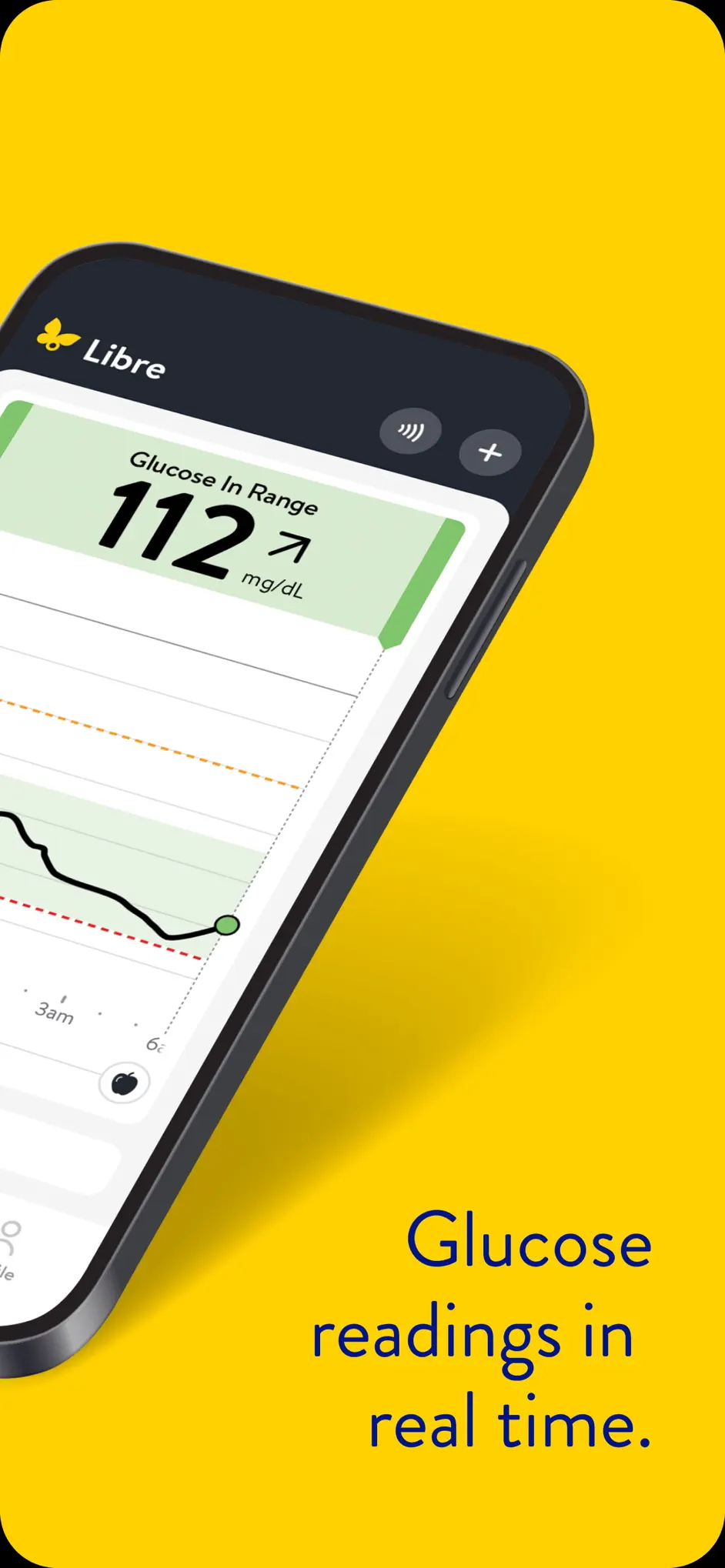
Official Libre by Abbott App Store preview
Official Libre by Abbott App Store preview. Example data only.
2

Create a LibreLinkUp receiving account.

Download LibreLinkUp. Tap Get Started and create an account using your second email address—the one that is different from the email used in your main Libre app.

Finish registration, accept any required terms, and sign in once. Keep this email and password available; you will enter them later in Glucose Thread.

LibreLinkUp on the App Store →
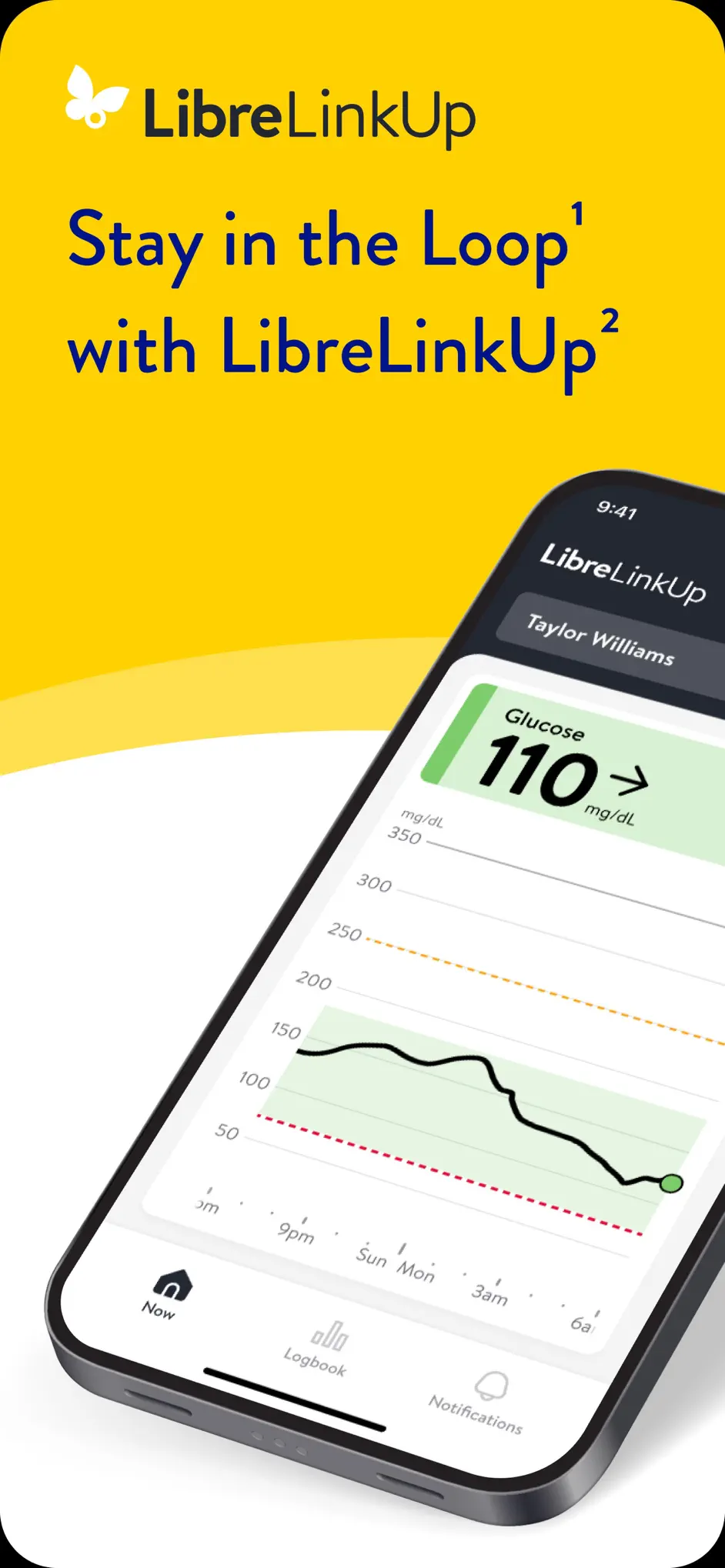
Official LibreLinkUp App Store preview
Official LibreLinkUp App Store preview. Example data only.
3

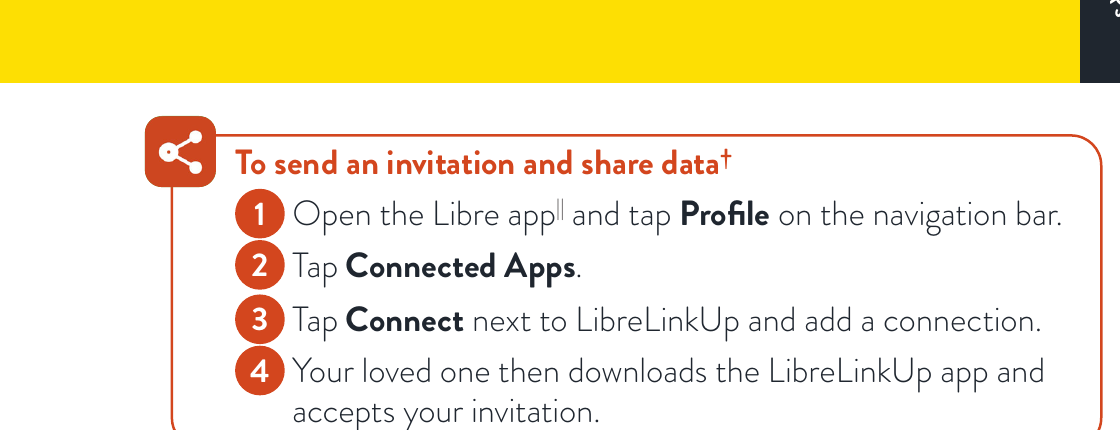
Invite the second email from your Libre app.

  1. Open your official Libre app.
  2. Tap Profile.
  3. Tap Connected Apps.
  4. Next to LibreLinkUp, tap Connect.
  5. Add a connection using the second email address from Step 2.

The invitation email must match the email used to create the LibreLinkUp account.

Open Abbott’s official getting-started guide →
Abbott guide showing Profile, Connected Apps, and Connect next to LibreLinkUp
Source: Abbott’s 2026 U.S. Libre getting-started guide.
4

Accept the connection in LibreLinkUp.

Open LibreLinkUp and accept the pending invitation. Confirm that you can see your shared current reading and trend in LibreLinkUp.

Do not continue until LibreLinkUp is receiving readings. Glucose Thread uses this receiving account; it does not sign in to the main sensor account.

Ready to continue when…LibreLinkUp shows your shared reading

If nothing appears, verify that the invitation email exactly matches the LibreLinkUp account email and that both phones/apps have internet access.

5

Connect LibreLinkUp inside Glucose Thread.

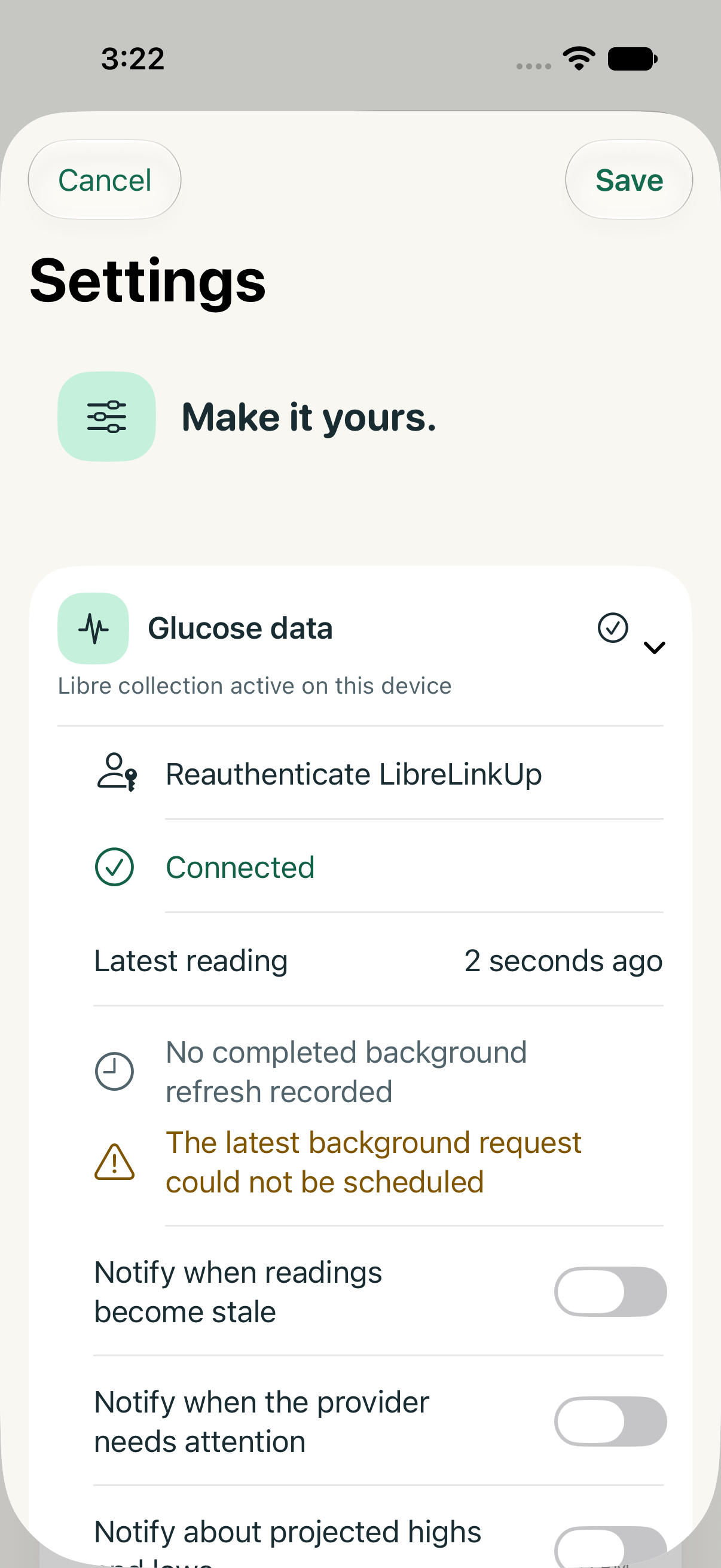
  1. Open Glucose Thread.
  2. Tap the gear to open Settings.
  3. Open Glucose data.
  4. Tap Connect Libre or Reauthenticate LibreLinkUp.
  5. Choose LibreLinkUp.
  6. Enter the second email and LibreLinkUp password from Step 2.
  7. Tap Connect securely, select your connection if asked, then return to the dashboard.

Your password is stored in Apple Keychain on your device. It is not sent to Drive Logic or saved with your health history.

Glucose Thread Settings with Connect Libre under Glucose data
In Glucose Thread, open Settings → Glucose data → Connect Libre.
Final check

Make sure everything is connected.

Your official Libre app still shows current readings and remains your source for alarms and treatment decisions.

LibreLinkUp shows your shared reading.

Glucose Thread shows LibreLinkUp as connected and labels the latest reading time.

You understand that Glucose Thread can show delayed, stale, incomplete, or unavailable data.

Safety and independence

Always keep Abbott’s official Libre app installed and working. Use only the official Libre app or approved device and your prescribed care plan for alarms, treatment, and dosing decisions. Glucose Thread is independently developed and is not affiliated with, sponsored by, endorsed by, or approved by Abbott or any CGM manufacturer.

Need help?

Start with the step where your reading disappears.

If the official Libre app has no reading, contact Abbott. If Libre works but LibreLinkUp does not, recheck the invitation email. If both work but Glucose Thread does not connect, contact Drive Logic without sending readings, passwords, or medical records.